DocsBuild
Build: create, run and verify
Build is where Qwanter builds. It writes the code, runs it, tests it with an automated browser and shows you the preview. If something fails because of us, you don't pay for it.
Create an app
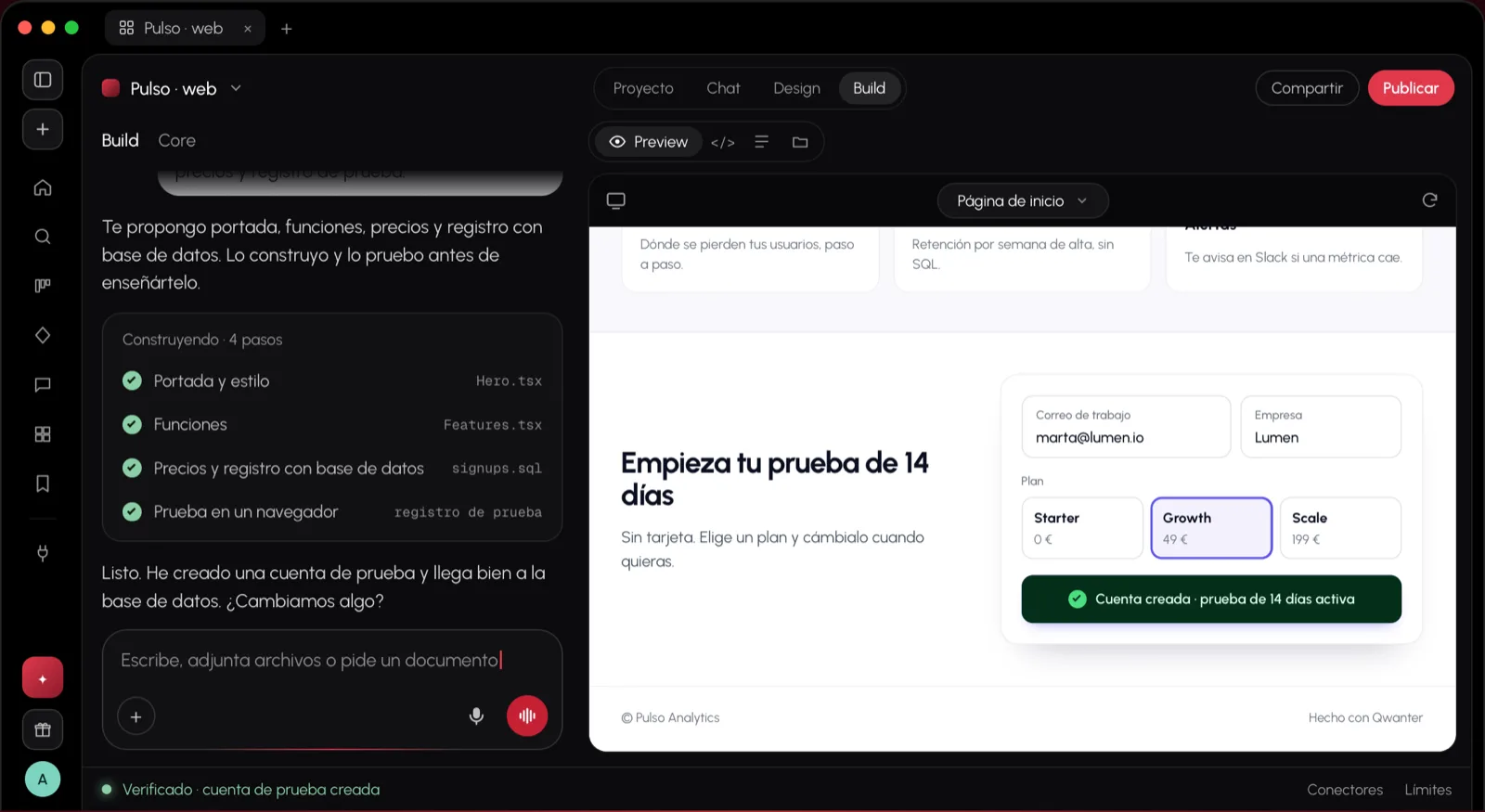
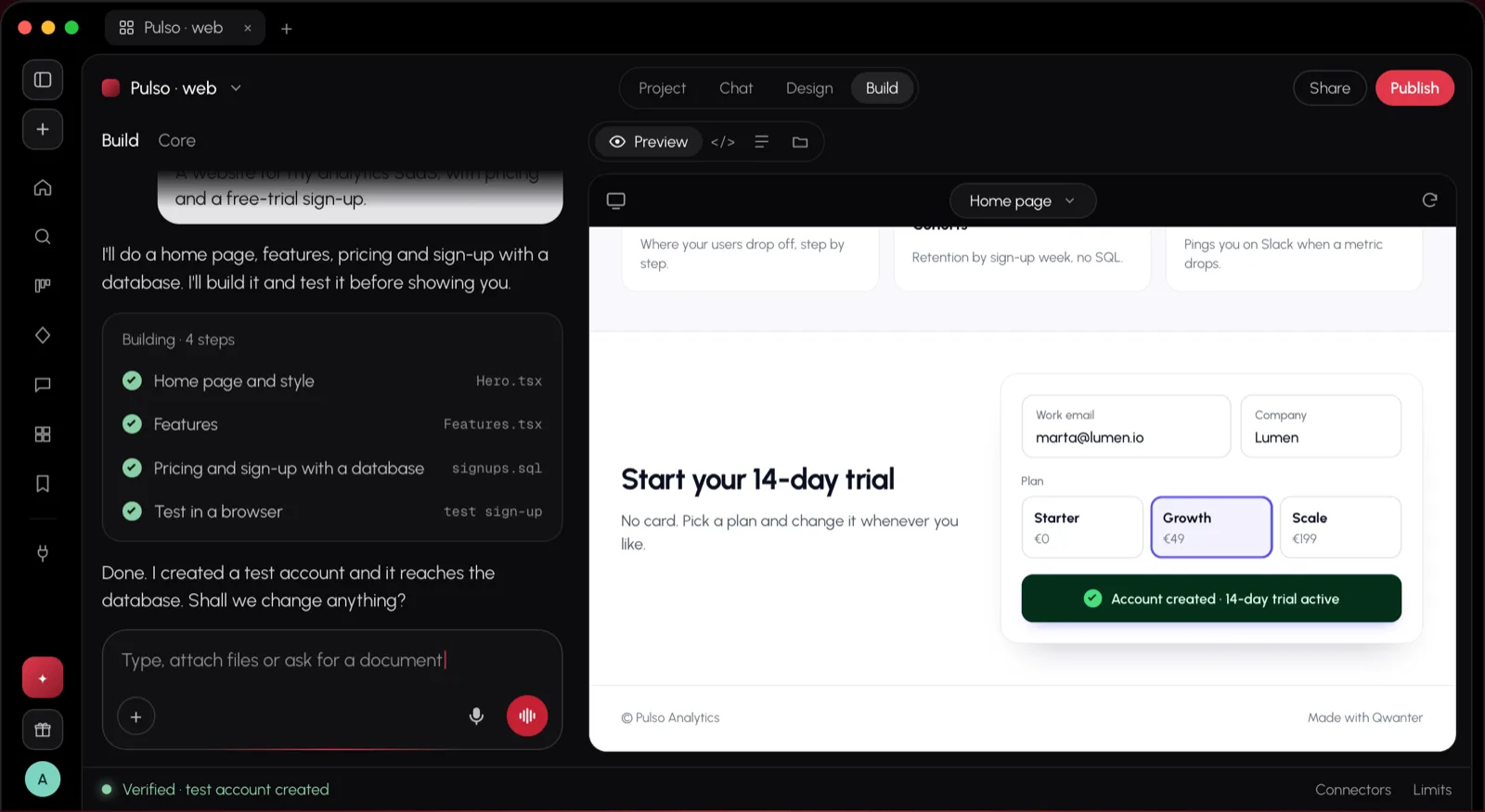
Ask Build for what you want to build or change, or hand it Core's plan. You see it work in steps: which files it reads and writes, what it runs and what it checks.
- Websites and web apps: React and TypeScript, in an isolated environment in the cloud or in a folder on your computer.
- Mobile apps: with Expo in the cloud or, on a Mac with Xcode, in SwiftUI with the iPhone and iPad simulator right in the preview.
- Services: bots, APIs and automations, which live in a folder on your computer.
You can look at the code at any time, and it's yours: it lives in your repository and you can take it with you.
The preview
The preview is your app actually running, next to the chat. At the top you choose the device (desktop, tablet or mobile) and the page you want to see, and you can reload it; you can also open it in a separate window.
At the bottom, inside the preview, there's a bar for editing by pointing:
- Select: mark one or more elements and say what you want to change; Build changes exactly those.
- Text: change a text by typing over it, without using credits.
- Comment: leave notes on the page and send them all together.
For SwiftUI apps the preview is the live simulator: you tap, drag and type with your keyboard as on an iPhone.
Default and Maximum
In Build's box you choose the power: Default, the usual, fast and saving credits, or Maximum, Qwanter at full power on every step. With Maximum, every Build step works with more capacity, and so do the security review and the help when a failure repeats.
Maximum is for Antares and uses a lot more credits, so use it for hard things: a complex part, a stubborn bug or a big app. When you Hand to Build it always starts on Default.
Verification
Before calling a task done, Build checks that it compiles, that it runs without errors and, with an automated browser, that the preview works: for example, that the sign-up form actually saves.
Every answer shows its evidence: what was checked, with what result and what couldn't be checked. If something sensitive changes (keys, database or access), a security review looks at it before finishing.
What a task spent when it fails because of an error on Qwanter's side or in the infrastructure goes back to your balance.
Undo and versions
Every Build run saves a version. Under its answer you have Undo this run, and in the Project space you see all the versions and can go back to any of them.
If you edit one of your messages and resend it, Qwanter undoes what it did from that point and carries on with the new message.
Templates
In Library › Templates there are ready-made starter projects with their tests: a Telegram bot and an automations service. They're copied as they are, without using AI, into a folder on your computer, and then Qwanter suggests how to adapt them.
Automations are on Jupiter and Antares; the bot is on every plan.